


Spam calls waste time. The old choice was bad: ignore unknown numbers and miss important calls, or answer and get a scam. Blocking spam calls felt incomplete.
iOS 26 fixes this. A feature called “Ask Reason for Calling” changes the game for call screening. It makes your iPhone a gatekeeper.
When someone not in your Contacts calls, your iPhone answers automatically. A voice asks for their name and reason. The caller is put on hold. Their spoken reply appears as text on your screen. You see the context before you decide: answer, decline, or message back.
This is smarter than just silencing unknown callers. That old method sent everyone to voicemail—spam, your doctor, a delivery driver. The new feature is a filter. Legitimate callers identify themselves. Robocalls and spam callers usually hang up.
How to Enable Call Screening in iOS 26
Setting up this spam call blocker is simple.
- Open Settings.
- Tap Apps, then Phone.
- Under “Screen Unknown Callers,” select Ask Reason for Calling.


Your contacts ring normally. Everyone else is screened first. You can also choose “Silence” (sends all unknown calls to voicemail) or “Never” (disables screening).
Important Note on Language & Region
After enabling the feature, most users will see it work immediately. However, if the “Screen Unknown Callers” menu does not appear in your Phone settings, check one thing: your iPhone’s Language and Region must be a supported pair.
This feature requires specific language-region combinations. A mismatch will hide the option.
- Example 1: Language set to Portuguese (Portugal) with Region set to Brazil.
- Example 2: Language set to Chinese with Region set to United States.
To fix this:
- Go to Settings > General > Language & Region.
- Ensure your iPhone Language and Region settings correspond (e.g., English and United States).
After ensuring your iPhone Language and Region correspond (e.g., English and United States), the option should appear. (This troubleshooting step was confirmed by user reports, such as in this Reddit thread on the topic.)
The Complete Two-Layer Defense
For the strongest protection, combine Apple’s native screening with a third-party identification database. This is the definitive strategy to stop spam calls.
- Layer 1 (Third-Party Identification): Go to Settings > Apps > Phone > Call Blocking & Identification. Here, toggle on “Call Identification Apps.” After installing apps like Hiya or WhosCall from the App Store, they work here. They check incoming numbers against massive, crowdsourced databases of known spam and fraud numbers. A scam call identified by WhosCall might be silently blocked before your phone even reacts.
- Layer 2 (Apple’s Native Screening): This is the “Ask Reason for Calling” feature. It handles all other unknown numbers that slip past Layer 1. It asks the caller to state their purpose and transcribes their response for you.
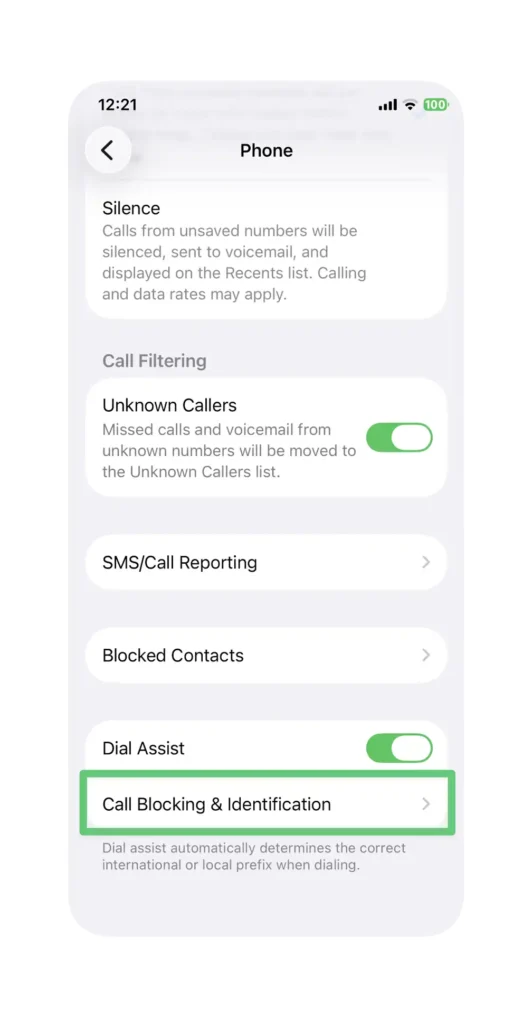
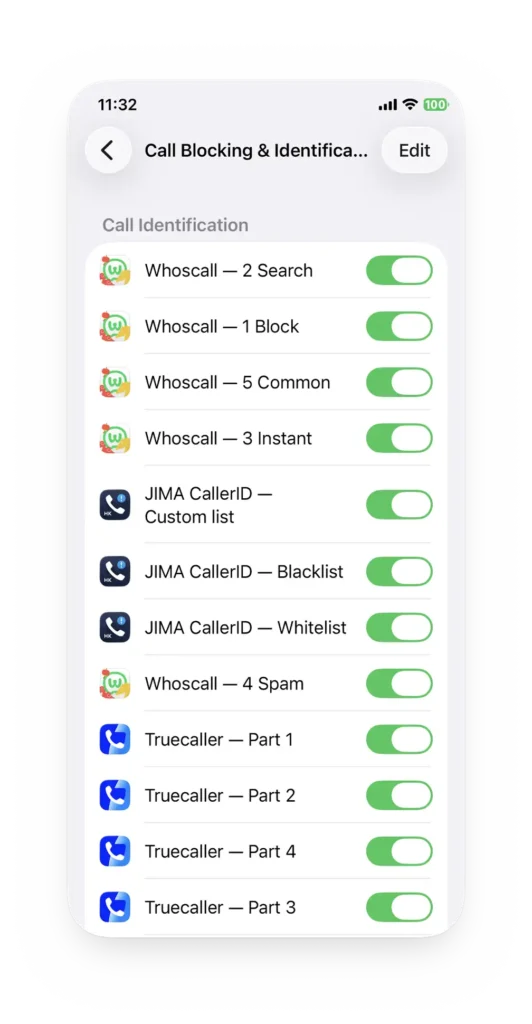
Think of it as a filter. Layer 1 blocks known bad actors using a global spam list. Layer 2 intelligently interrogates the remaining unknowns. You stop more spam with fewer interruptions.
The feature’s power is in rewriting the rules: the unknown caller must speak first. You’re no longer the one performing the work of screening. You get control back. It is the most effective spam call protection built into your iPhone.
Want to experience iOS 26’s powerful call screening for yourself? All iPhones from iPhone 11 up to 15 Pro Max support this feature. Browse our collection of refurbished iPhones—they’re budget-friendly, sustainable, and backed by our 90-day warranty.